

Activate an audience
Export your audience in the format your destination expects — social platforms, DSPs, outbound lead lists, direct mail.
You built the audience — now go use it. Activating exports it in the exact shape your destination expects:
- Social platforms — Meta, Google, LinkedIn, X, Reddit, and more, each in its own custom-audience format, ready to upload.
- DSPs — shaped for direct use in your programmatic buys.
- Outbound — lead lists for email and SMS campaigns.
- Direct mail — names and addresses, ready for the mail house.
Say where it's going:
/watt:audience export this to Meta/watt:audience I need a lead list for an email campaign/watt:audience get this ready for my DSP
Watt names the formats available when you ask — the chat is always the current answer.
And that's just Watt's side. You're in Claude, so the export composes with the rest of your tooling: push it into your CRM through an MCP connector, dedupe it against a suppression list you keep, or hand it to anything else your connected tools can do with a file.
Nothing exports unconfirmed
Activation is the one step that pulls real people, so it runs behind an explicit gate. Before anything is pulled, Watt puts three things on screen and waits for your yes:
- The destination — the platform you're exporting to, or the format, when it's a custom output.
- The scale — how many people you can expect to reach.
- The identifier types — which identifiers each person carries into the file (emails, phones, postal addresses, mobile ad IDs), matched to what the destination accepts.
That size will vary, especially on ad platforms. They resolve the identifiers you upload to ad slots through their own systems, and a share of any list never resolves on their side. Watt reports its expected size up front so you have something to check against: compare it to the number the platform reports back after you upload — if Watt says 100k and the platform comes back with 10k, that gap means something went wrong. Let us know with /watt:help and we're happy to get involved — the platforms love to change how it works and not tell you.
If your expected size comes back too small, you always have three options with Watt:
- Include more identifiers per person. Watt defaults to the top 3 per identifier type the platform supports — ask and it'll include them all, giving the platform more to match on.
- Widen the audience. The Signal Graph runs deep — often a slight tweak to your signal stack is plenty to clear the gap.
- Run an audience expansion. The popular one is household-based: Watt builds a derivative list of everyone in each person's household to reach.
The file
Every file matches what its destination actually accepts — for an ad platform, the published spec exactly: the layout, the field order, the identifier handling — because platforms tend to be very specific and sensitive, and a file that's almost right won't perform well. It comes back as CSV or JSON, delivered as an MCP resource pointing at a temporarily hosted file (see Data handling) — ask to download it, copy it to your system, or hand it wherever it's going.
- Identifiers are hashed wherever the destination requires it. An ad platform's file holds digests, not raw emails — except the fields it matches in the clear, which differ by platform and are named in the confirmation. A lead list for outbound or direct mail carries contact data in the clear — that's its job.
- Some platforms take more than one file (a separate device-ID list, for example). You get every file the spec calls for, each with its own row count.
- Carry more than identifiers. Ask for columns of defining characteristics — the traits that put each person in the audience — and feed them to content generation or personalize the outbound.
- The counts come back named. Each file reports its actual row count, so you can check it against the expected size you confirmed.
One more promise: a platform that hasn't shipped gets a straight answer — Watt never improvises a "close enough" file for an unsupported format. Missing yours? Tell the team.
Allow file downloads
Export links are served from a cloud storage domain, so Claude needs network egress enabled to reach them. This is a one-time setup — if you already have it on, skip ahead.
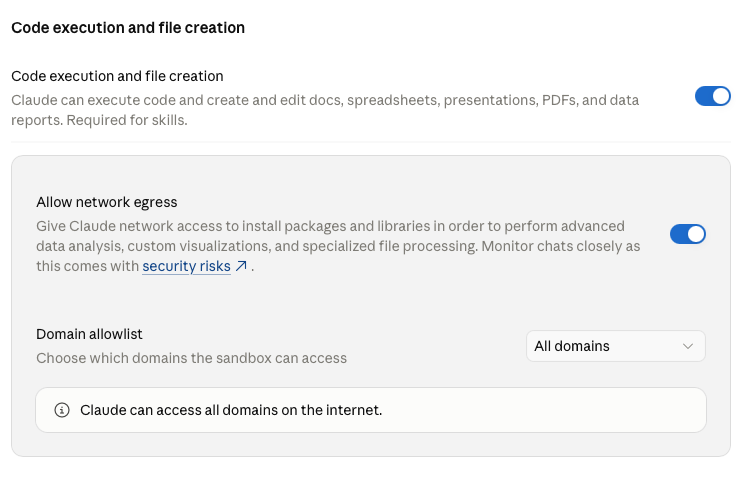
Open Capabilities settings
Go to Settings → Capabilities and find the Code execution section.
Turn on network egress
Enable Allow network egress so Claude can reach the download link.
Set the Domain allowlist to All domains
Under Domain allowlist, choose All domains so your downloads aren't blocked.